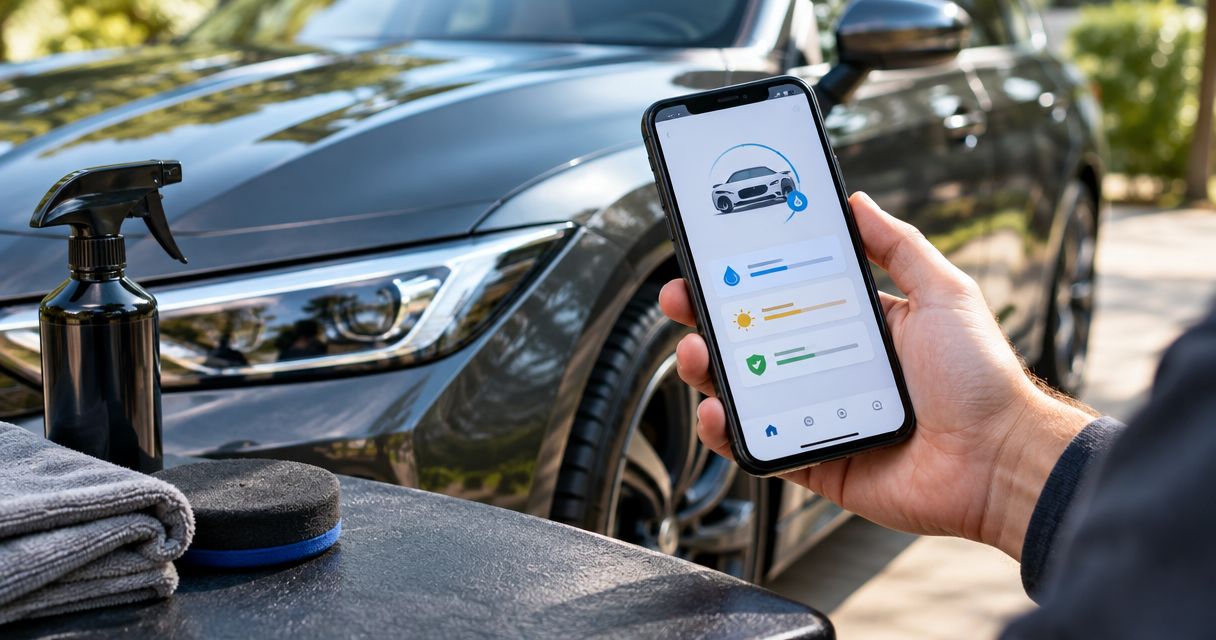
Instead of remembering every coating-care task yourself, use Apple Reminders as your ceramic coating maintenance reminder app: save your detailer’s instructions, add a repeating task, and enable phone notifications. Keep maintenance reminders separate from confirmed service appointments so an alert never becomes a booking you haven’t made.
- Apple Reminders works as a ceramic coating maintenance reminder app when you enter your detailer’s actual care schedule.
- Jmattdetailing suits NH Seacoast owners seeking mobile paint correction and ceramic coating services, not another scheduling app.
- Use recurring tasks for coating care and calendar events for confirmed appointments.
- Test a phone notification before relying on your maintenance schedule.
Why this matters
A reminder solves a memory problem, not a paint-care problem. Your phone needs the right instructions before it can prompt the right action.
For owners considering combined paint correction and ceramic coating, preparation and the intended finish belong in the service discussion. Correction addresses paint defects; coating is a separate protective treatment. Confirm the actual package scope rather than assuming both are included.
Jmattdetailing provides mobile detailing, paint correction, and ceramic coating services across the NH Seacoast, including Exeter, Portsmouth, and Dover. Mobile-service convenience matters, but so does agreeing on preparation, finish expectations, and aftercare before the work begins.
For your 2026 maintenance setup, start with written care instructions rather than copying a generic interval from an app.
Before you start
- Have your phone and notification access ready. This walkthrough uses Apple Reminders on an iPhone. You need access to the phone’s notification settings as well as the app.
- Gather the actual care instructions. Keep the coating identification, service date, washing guidance, and any recommended inspection schedule together. Ask the installer to clarify anything missing.
- Separate initial aftercare from recurring maintenance. Instructions immediately after application are not automatically suitable as a repeating schedule. A reminder also does not reserve a service appointment.
You do not need a connection to a detailer’s booking system for this workflow. You enter the instructions, and your phone handles the alerts. That simplicity is useful, but changes to the care plan still require you to update the task.
Choose the right place for the reminder
Apple Reminders is the better fit for care tasks; Apple Calendar is the better fit for confirmed appointments. Use each for its own job rather than maintaining two competing versions of the same task.
| Option | Best for | Advantage | Limitation |
|---|---|---|---|
| Apple Reminders | Recurring coating-care tasks | Keeps a due date, notes, and completion status together | You must enter and maintain the correct care schedule |
| Apple Calendar | Confirmed detailing appointments | Reserves a visible time slot alongside your other commitments | An event is not a maintenance checklist or proof of booking |
Neither app determines whether your paint needs correction, whether contamination needs attention, or which maintenance treatment suits the coating. Those decisions belong in a conversation with the service provider.
The setup below uses Apple Reminders. Labels refer to the English-language iPhone interface; control placement differs between software versions.
Care notes
Build the information behind the alert before choosing when it repeats. Otherwise, a notification can arrive on time without telling you what to do.
- Open Reminders and choose the list where you want to keep vehicle-care tasks.
- Tap New Reminder. Enter a specific title, such as “Check sedan coating-care instructions,” rather than “Car stuff.”
- Select the reminder and open its information button to access Details.
- In Notes, enter the vehicle identifier, coating information supplied by the installer, service date, and the exact maintenance action.
- Add any restrictions from the written instructions. Keep initial aftercare instructions clearly separate from recurring tasks.
- Tap Done to save the details.
A useful note answers three questions: which vehicle, what action, and whose instructions govern it. If you have 2 vehicles, give each a distinct task title instead of putting both under one vague reminder.
For a service completed in 2026, record the full service date from your paperwork. Do not use the date you created the reminder as a substitute.
Expected result: Opening the task shows enough information to identify the vehicle and the intended action without searching old messages.
Reminder details
Choose a due date that reflects the installer’s instructions and a time when you can respond. An alert that repeatedly arrives during an inconvenient part of your day becomes easy to ignore.
- Open the task’s Details.
- Turn on Date and select the due date from your care instructions.
- Turn on Time and choose an appropriate notification time.
- Check the task title again. Use an action such as “Arrange coating inspection” when the next step is an enquiry, not “Coating appointment” before anything is booked.
- Tap Done.
If a service visit needs arranging, you can create a separate planning reminder 1 day before your chosen enquiry date. That is an organizational choice, not a coating-care interval or a statement about appointment lead times.
Avoid putting every instruction into the title. Keep the title readable on a locked screen and place the detail in Notes.
Expected result: The task displays the intended date and time, and its wording distinguishes a care action from an appointment.
Repeat schedule
Use repetition only when the underlying instruction actually repeats. A one-time post-application instruction should remain a one-time task.
- Open Details for the dated reminder.
- Tap Repeat.
- Choose the frequency that matches the written care schedule. Use Custom when the standard choices do not match.
- Check the first due date and the repeat setting together. A correct repeat interval does not fix an incorrect starting date.
- Tap Done to save.
- Keep any confirmed service appointment separate from this recurring care task.
Do not choose monthly, quarterly, or annually just because the app offers it. The installer’s instructions determine the maintenance schedule; the app only records it.
For a 2026 setup, distinguish a routine care reminder from a seasonal prompt to review the vehicle’s condition. A seasonal prompt can tell you to ask for advice, but it should not prescribe an unsupported treatment.
Expected result: The task shows the intended repeat setting, while initial aftercare and appointment details remain separate.
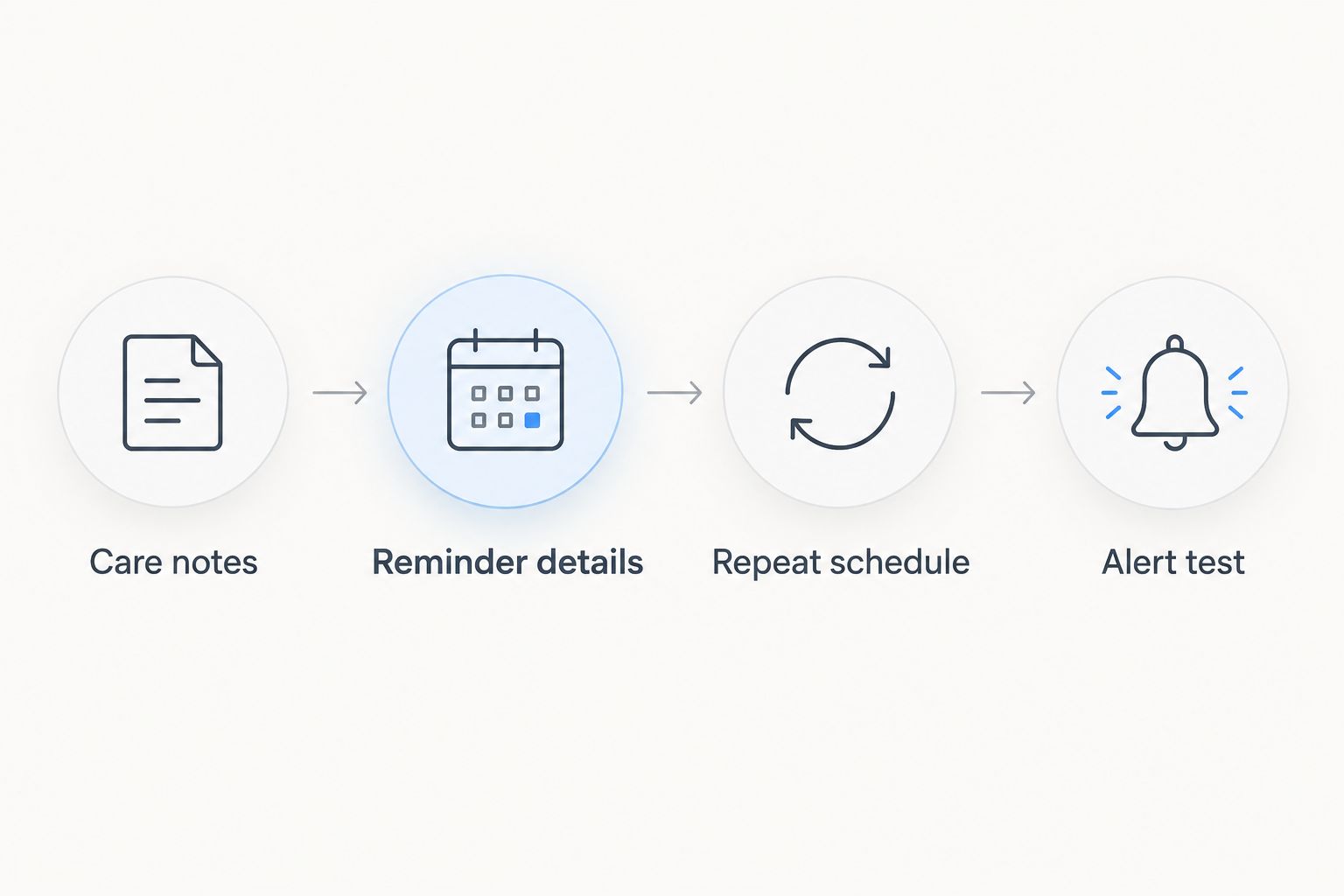
Alert test
Test delivery before trusting the schedule. A correctly dated task is not enough if notifications are disabled or hidden by your phone settings.
- Create a separate, non-repeating test reminder. Set its date to today and its time to 5 minutes from now.
- Open iPhone Settings, then Notifications, then Reminders.
- Turn on Allow Notifications. Select the alert locations you want, including Lock Screen if you want to see reminders without opening the phone.
- Check whether an active Focus setting silences Reminders notifications. Allow the app within that Focus when appropriate.
- Lock the phone and wait for the test alert.
- Delete the test task after checking delivery. Leave your real maintenance task on its correct date and repeat setting.
Testing a separate task avoids accidentally changing your actual care schedule. If the test fails, resolve notification delivery before adding more maintenance reminders.
Expected result: Your phone displays the test alert where you expect to see future reminders.
Update the workflow after a maintenance visit
A second useful workflow starts when the vehicle receives care. Instead of leaving old notes untouched, review the reminder against the instructions supplied after that visit.
- Record the completed service date and relevant instructions in your vehicle-care notes.
- Mark the completed maintenance task as done only after the action has actually happened.
- Check the next scheduled occurrence. Do not assume it now matches a revised care plan.
- If the provider changes the instructions, update Notes, Date, and Repeat to match.
- If a follow-up appointment is confirmed, put that appointment in your calendar separately.
This is a manual update followed by automatic alerts, not an automatic connection to the detailer. The benefit is control: you can see exactly what the reminder says and why it exists. The drawback is that someone must keep the instructions current.
If you are planning correction and coating together, read the guide to whether paint correction and ceramic coating can be done in one visit before discussing the work. Confirm preparation, application conditions, and appointment arrangements rather than treating the reminder as a service plan.
Troubleshooting
The reminder exists, but no notification appears
Check that the task has both Date and Time enabled. Then review Allow Notifications and any active Focus settings, and run another short test. Changing the coating-care interval will not fix a notification-permission problem.
The alert arrives, but you cannot tell what it means
Rewrite the title as a specific action and add the vehicle identifier. Put the installer’s instructions in Notes. “Review hatchback coating-care notes” is more useful than “Maintenance” when several tasks appear together.
The next reminder has the wrong date
Inspect the task’s starting date and Repeat setting. Compare both with the written care plan, especially after rescheduling or completing work late. Correct the task deliberately instead of repeatedly postponing an inaccurate reminder.
Two people are maintaining duplicate schedules
Agree on one source of truth for the vehicle. If household members use separate reminders, decide who updates the instructions after service. Duplicate alerts are inconvenient; conflicting instructions are the more serious problem.
The paint looks different before the reminder is due
Do not wait for an app notification to ask about a visible concern. Record what you see and contact the provider for advice. A dated task cannot diagnose marks, contamination, or a change in surface behavior.
Customize your workflow
Keep your 2026 setup small enough to maintain. Start with the tasks supported by your written instructions, then add a separate appointment-planning reminder only when it serves a clear purpose.
For combined paint correction and ceramic coating enquiries, ask about these points before scheduling:
- Preparation: What assessment and preparation does the proposed work include?
- Finish: Which visible defects are being addressed, and what limitations remain?
- Scope: Are correction and coating both included in the proposed service?
- Mobile arrangements: What access and working conditions need confirming?
- Aftercare: Which instructions should become reminders after the work?
Jmattdetailing is best for NH Seacoast owners seeking mobile paint correction and ceramic coating services. The convenience is having a mobile-service discussion around your vehicle and location; the limitation is that your address, working conditions, and package scope still need confirmation.
Exeter is within the stated service area. For Rye, North Hampton, or Newburyport, ask about your exact address rather than assuming coverage. Make a call or booking enquiry your next step when you need an assessment, not another app setting.
Discuss correction and coating
Ask about preparation, package scope, mobile arrangements, and the care instructions your reminders should follow.
FAQ
What's the best ceramic coating maintenance reminder app for an iPhone?
Apple Reminders is a practical choice for recurring coating-care tasks on an iPhone. Enter your installer's actual instructions, enable notifications, and test an alert before relying on it.
How often should I set ceramic coating maintenance reminders?
Set the frequency stated in your installer's written care instructions. Keep one-time initial aftercare separate from recurring maintenance, and ask for clarification when no interval is specified.
Can a reminder app book my coating maintenance appointment?
This reminder workflow does not book appointments. Contact the service provider, confirm the arrangement, and then add the confirmed appointment to your calendar.
Should I use a calendar or a task reminder for ceramic coating care?
Use a task reminder for care actions and a calendar event for a confirmed appointment. Keeping those roles separate prevents a personal prompt from looking like a reserved service visit.
Can I use an Android phone for coating maintenance reminders?
Yes, the same workflow applies to an Android task or calendar app that supports recurring notifications. The button labels differ, but you still need accurate care instructions, a due date, and a successful notification test.
Does paint correction come with ceramic coating?
Do not assume paint correction is included with ceramic coating. Ask the provider to confirm the proposed preparation, correction work, coating application, and aftercare scope.
Can Jmattdetailing help owners in Exeter, Rye, North Hampton, or Newburyport?
Jmattdetailing explicitly serves Exeter as part of its NH Seacoast service area. Confirm coverage and mobile working arrangements for your exact address in Rye, North Hampton, or Newburyport before scheduling.
One last thing
The most useful reminder includes the instruction behind the date. Before you finish your 2026 setup, open a task and check whether you would understand it without remembering the original conversation. If not, improve the note now; adding more alerts will not solve unclear instructions.